Panda Contacts
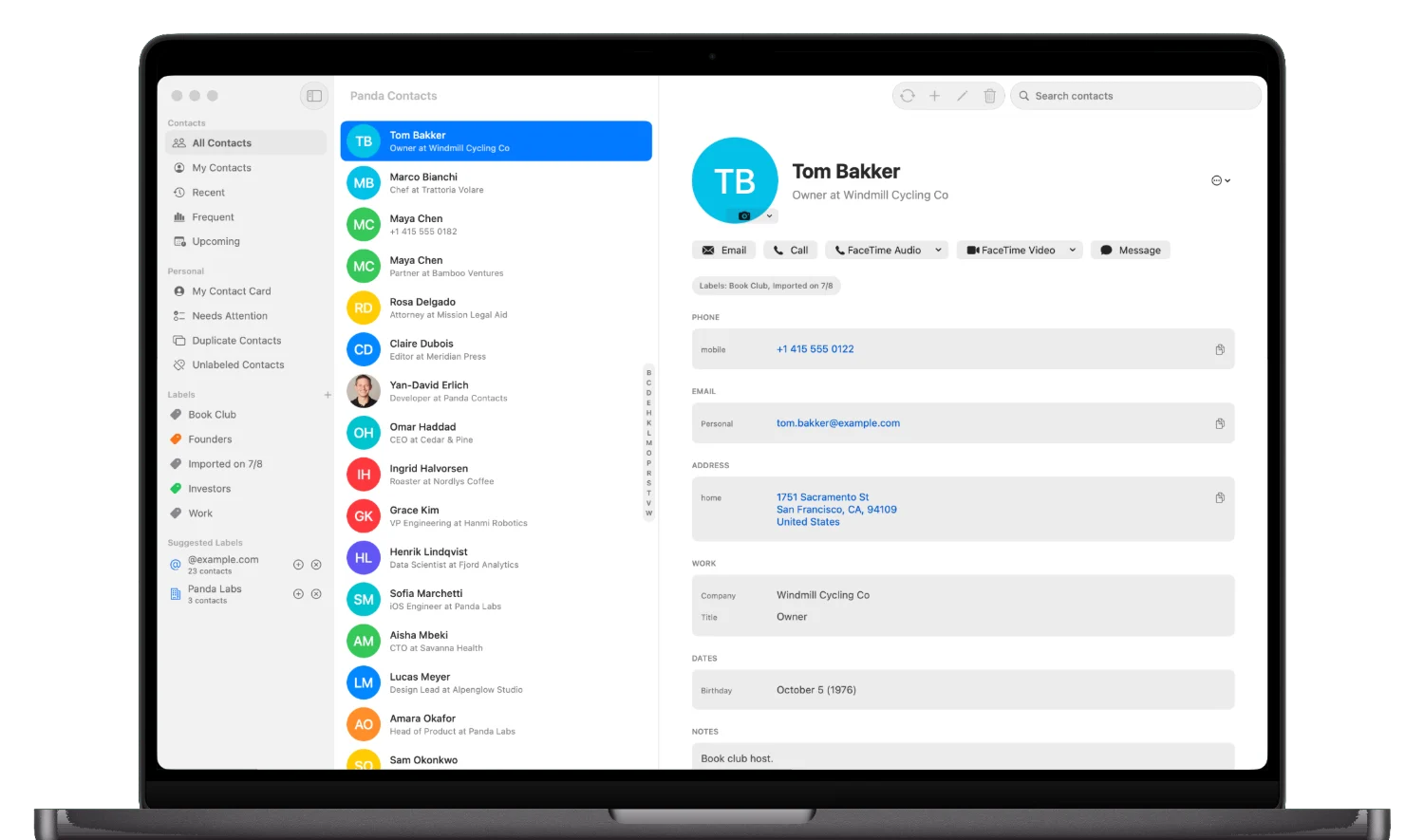
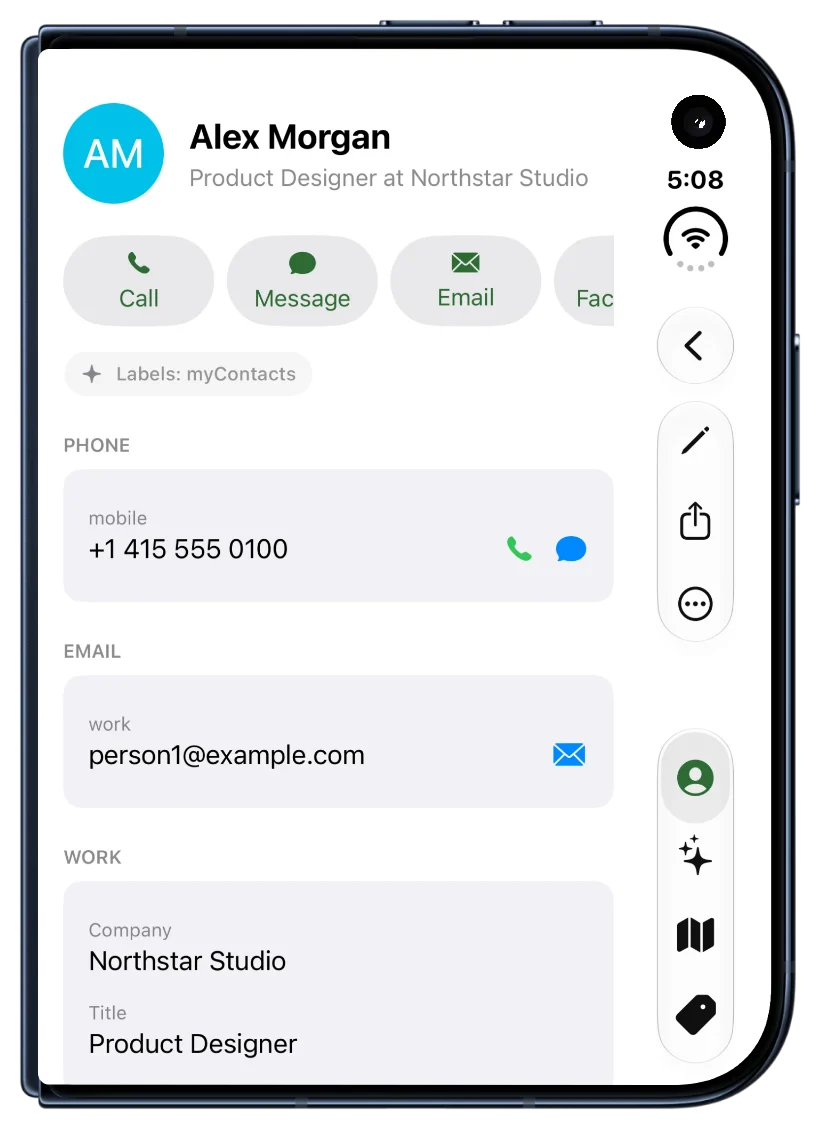
Panda Contacts is a fast, native home for your Google Contacts on Mac and iPhone — with the context address books forget: your next meeting, your last email, the birthday coming up. Built with SwiftUI, it has instant search, an offline cache, an iPhone widget, and a Raycast extension for instant lookup on the Mac.
There are no Panda servers: your data flows directly between your devices and Google, and duplicate detection, search, and reminders all run on-device. The essential Google Contacts client is free, forever; an optional Pro subscription adds calendar context, an email timeline, duplicate merge, maps, and birthday reminders across Mac and iPhone.
Free, with an optional Pro subscription. Requires iOS 26.2 or macOS 26.5 or later.
Panda Timekeeper
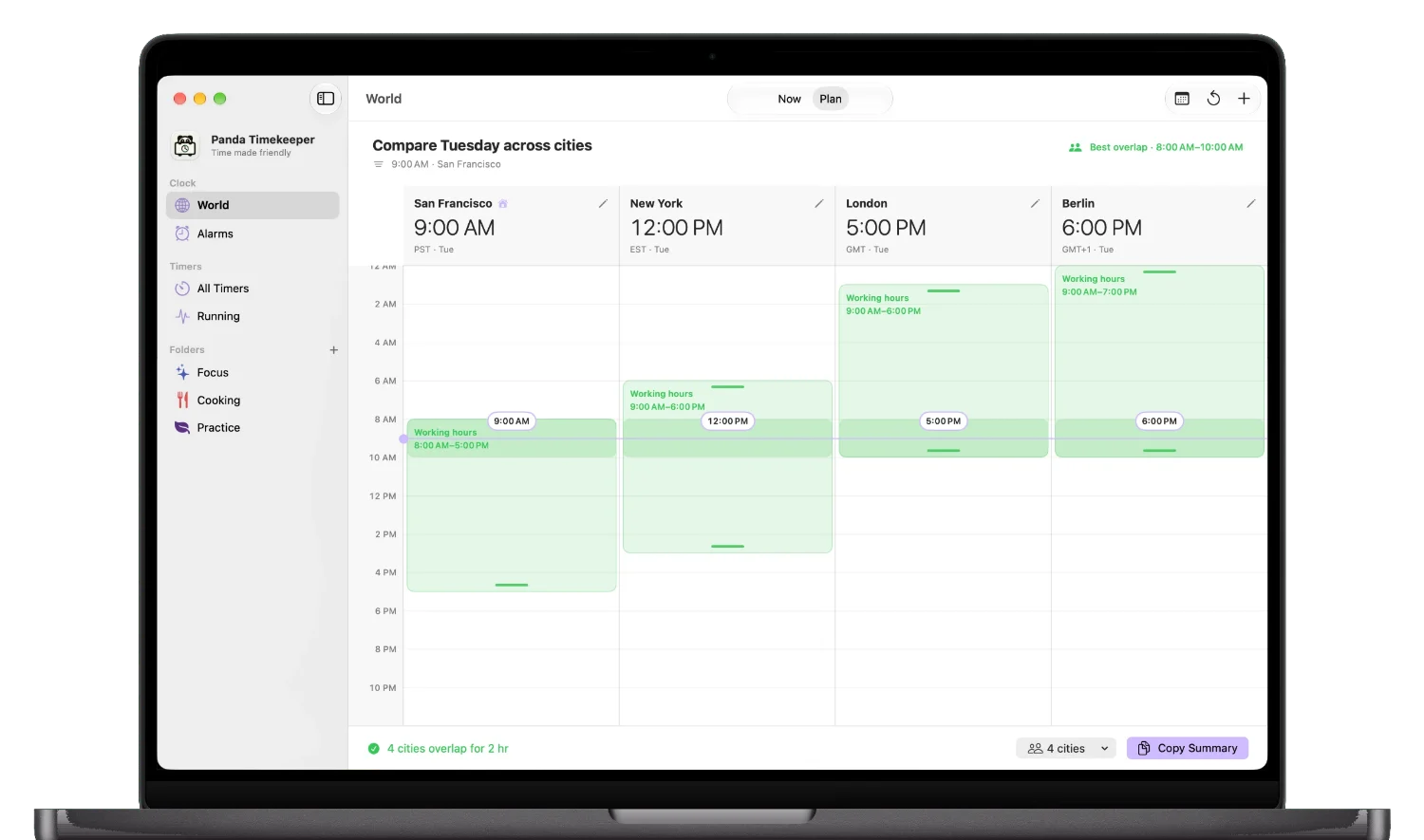
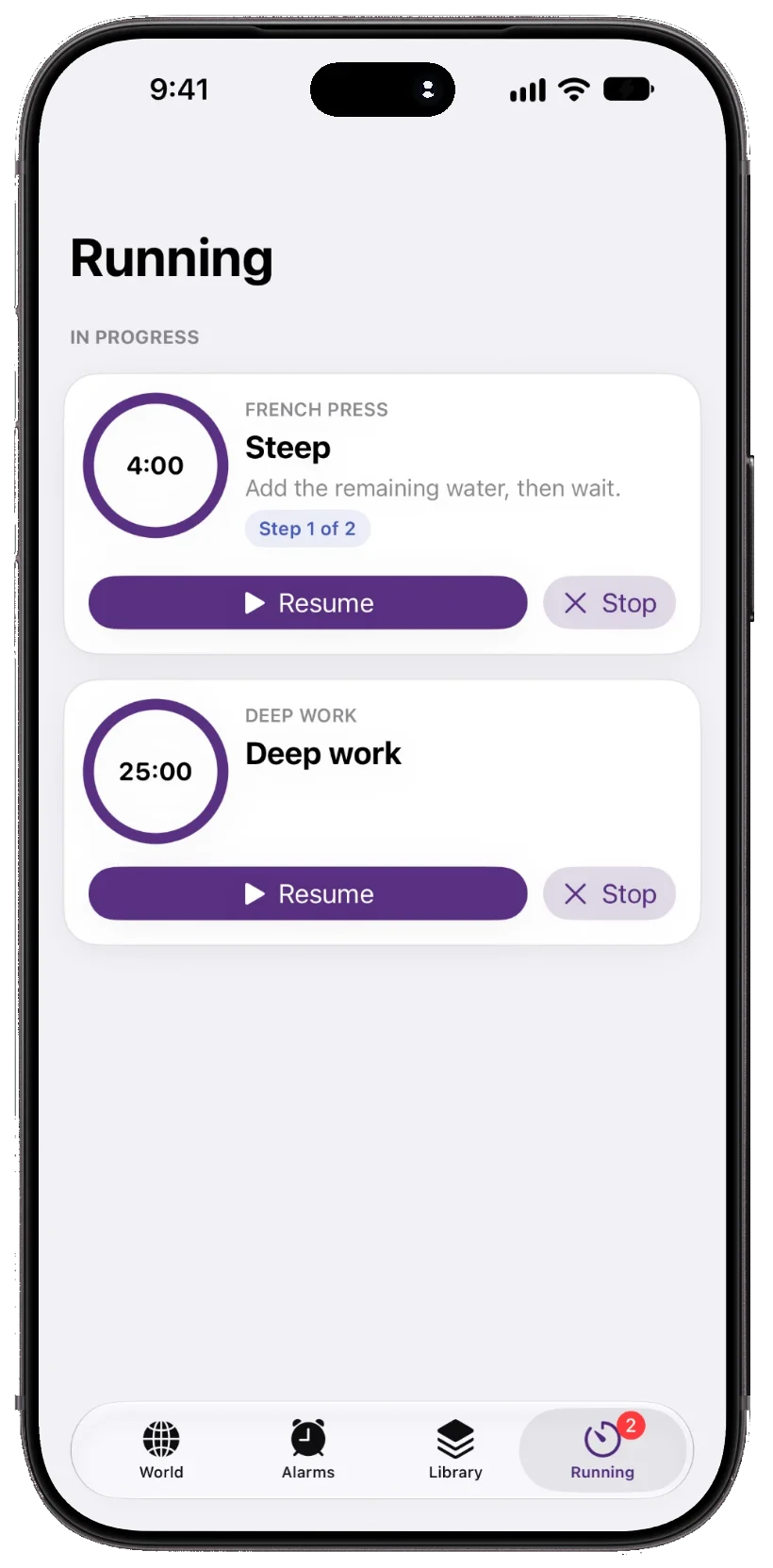
Panda Timekeeper rethinks the clock app: flexible timers, guided routines, and alarms that follow your real schedule. Routines walk you through multi-step rituals at your own pace — nothing advances until you're ready — with meditation chimes placed exactly where you want them, and timers you can control from the Lock Screen and Dynamic Island.
Alarms handle rules the built-in clock can't — every few days, specific weekdays, or locked to a time zone — and a world-clock planner shows where your hours overlap with cities around the world. Everything stays in sync between iPhone and Mac through iCloud.
Free. Requires iOS 26 or macOS 26 or later.


Panda Sit
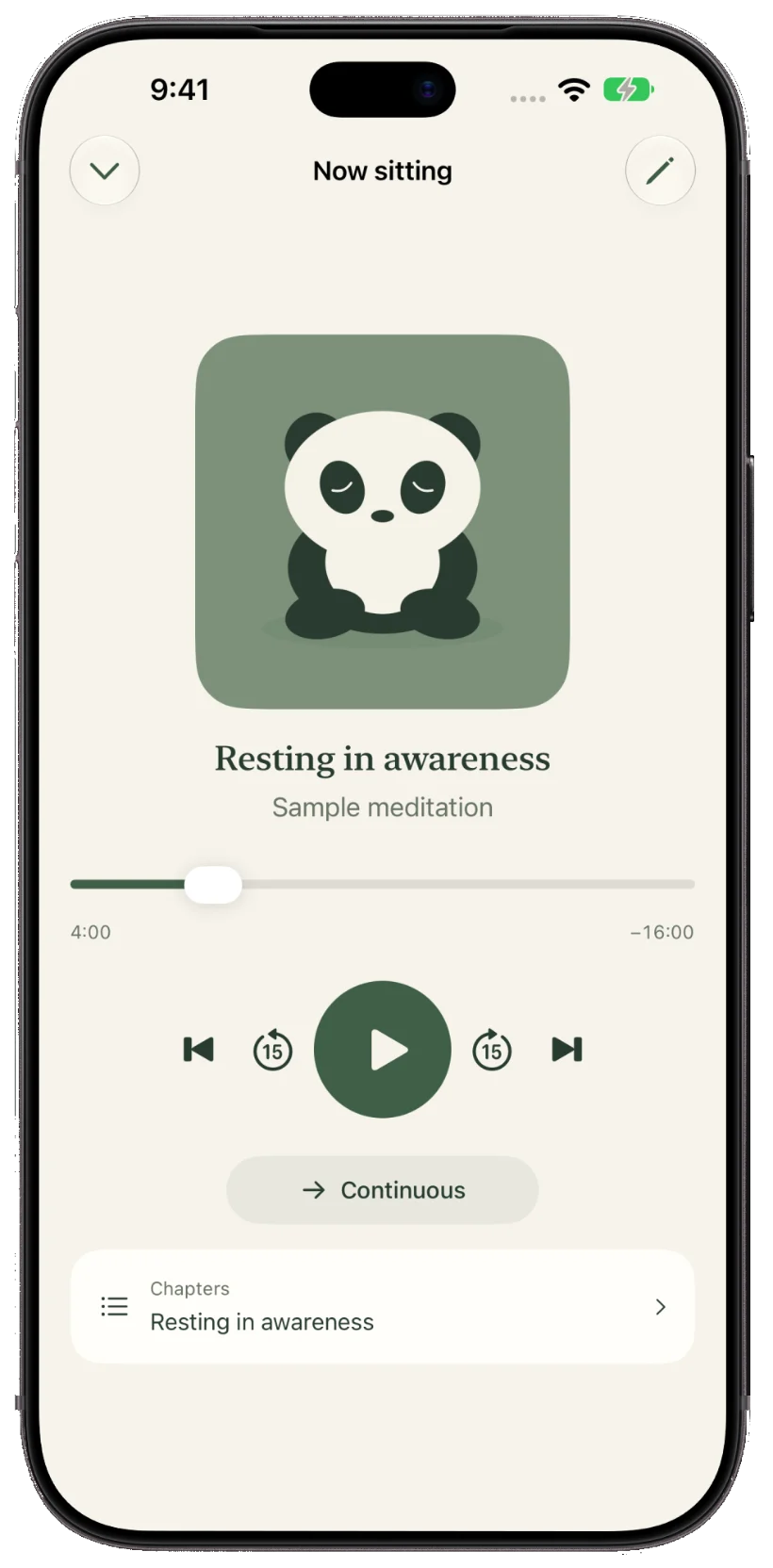
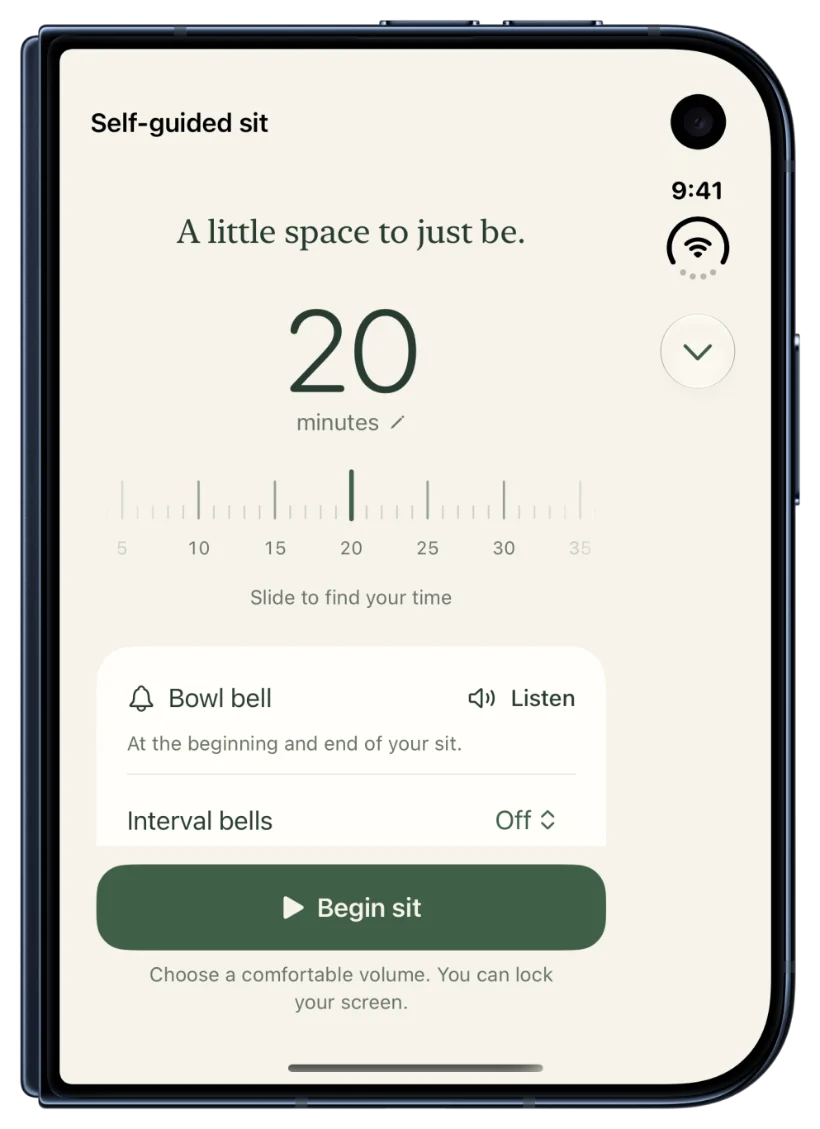
Panda Sit is a quiet home for your meditation practice: a self-guided timer with a softly struck bowl, optional interval bells, and a settling period before the first bell, plus a library for the guided recordings you already own. Import audio from Files or iCloud Drive, organize it into folders, mark favorites, and keep copies offline. Recordings with chapters get chapter navigation and an option to pause after each one.
There is no subscription and no Panda server. Your library syncs through your private iCloud, and you can share a recording or a whole folder with a friend through an iCloud link or a file: they get their own copy, and your listening progress and favorites stay with you. A Home Screen widget and lock-screen controls resume your latest meditation without opening the app.
Free, no subscription. iPhone and iPad.
Panda Expander
Panda Expander is a text expander that shows you the finished message while you type — pick a snippet, fill in a couple of fields, and a live preview assembles the text with repeated names kept in sync. Snippets support rich formatting, menus, multiline notes, and optional sections, and expansion happens locally in milliseconds.
It's private by design: matching and expansion run on your device, there are no accounts, analytics, or backend servers, and secure fields and password managers are always excluded. Snippets sync between Mac, iPhone, and iPad through your private iCloud, and the iOS keyboard works fully offline.
In beta for macOS 26+ and iOS/iPadOS 26+. The Mac beta downloads directly; the iOS beta is through TestFlight.

Switchyard
Switchyard is a tiny macOS app that registers as your default browser and hands every link you click to the right Google Chrome profile — work links in your work profile, everything else in your personal one. It works from any app: Slack, Messages, WhatsApp, Superhuman, Mail, PDFs — anywhere you can click a link.
It decides in milliseconds using a configurable ladder of rules: your work domains first, then the visible context of the app you clicked in (a work email in the recipient line, a Slack workspace name), then contacts, then per-app defaults. The menu bar icon always shows the last routing decision and why.
Install
- Download the latest
Switchyard-x.y.z.zipfrom the switchyard-releases repo. - Unzip and drag
Switchyard.appinto/Applications, then launch it. - The setup window walks you through mapping your Chrome profiles (auto-detected), your work domains, optional Accessibility and Contacts permissions, and making Switchyard the default browser.
Installed copies keep themselves up to date via Sparkle.
SoundOrder
SoundOrder is a macOS menu bar app that keeps your sound input and output on the device you actually want. Rank your devices by priority; whenever devices come and go — AirPods connect, a dock unplugs, a monitor wakes up — SoundOrder switches the system default to the highest-priority device that's available. No more meetings that start on the wrong mic.
Install
- Download the latest
SoundOrder-x.y.z.dmgfrom Releases. - Open it and drag SoundOrder into
/Applications. - Launch it, drag your devices into priority order, and optionally enable Launch at Login.
Requires macOS 26 or later. Installed copies keep themselves up to date via Sparkle.

Granola Switcher
The Granola meeting-notes app only lets you sign in to one account at a time. Granola Switcher is a command-line tool that captures each account's local state once, then switches between them in about a second — quit, swap, relaunch. It ships with Raycast script commands, so switching becomes a two-keystroke affair.
Install
brew install yanda/tap/granola-switcherSet up
Capture the account that's currently signed in, then sign in to your other account inside Granola and capture that one too:
granola-switcher capture personal --email [email protected]
  # sign out in Granola, sign in to your work account, then:
  granola-switcher capture work --email [email protected]
From then on, switch any time:
granola-switcher switch work
  granola-switcher switch personal
For Raycast, run granola-switcher raycast-install and add the printed folder under Raycast Settings → Extensions → Script Commands.
Unofficial and not affiliated with Granola. It relocates Granola's local session state on your own machine — use at your own risk, and never sync or share the switcher's data folder (it holds live login credentials).